常用布局面板演示
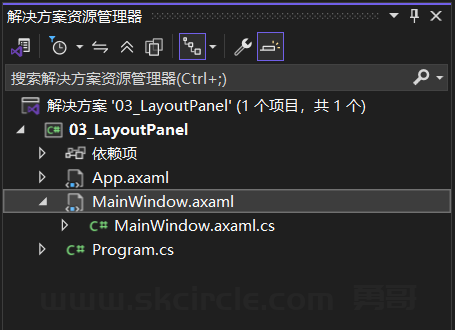
MainWindow.axaml
<Window xmlns="https://github.com/avaloniaui"
        xmlns:x="http://schemas.microsoft.com/winfx/2006/xaml"
        x:Class="_03_LayoutPanel.MainWindow"
        Title="Layout Panel - 布局面板演示"
        Width="600"
        Height="500">
  <ScrollViewer>
    <StackPanel Spacing="20" Margin="20">

      <TextBlock Text="StackPanel(栈面板)" FontSize="16" FontWeight="Bold"/>
      <Border Background="#E3F2FD" Padding="10" CornerRadius="5">
        <StackPanel Spacing="10">
          <Button Content="按钮 1"/>
          <Button Content="按钮 2"/>
          <Button Content="按钮 3"/>
        </StackPanel>
      </Border>

      <TextBlock Text="WrapPanel(环绕面板)" FontSize="16" FontWeight="Bold"/>
      <Border Background="#E8F5E9" Padding="10" CornerRadius="5">
        <WrapPanel>
          <Button Content="按钮 A" Margin="5"/>
          <Button Content="按钮 B" Margin="5"/>
          <Button Content="按钮 C" Margin="5"/>
          <Button Content="按钮 D" Margin="5"/>
          <Button Content="按钮 E" Margin="5"/>
          <Button Content="按钮 F" Margin="5"/>
        </WrapPanel>
      </Border>

      <TextBlock Text="StackPanel Horizontal(水平栈面板)" FontSize="16" FontWeight="Bold"/>
      <Border Background="#FFF3E0" Padding="10" CornerRadius="5">
        <StackPanel Orientation="Horizontal" Spacing="10">
          <Button Content="左"/>
          <Button Content="中"/>
          <Button Content="右"/>
        </StackPanel>
      </Border>

      <TextBlock Text="DockPanel(停靠面板)" FontSize="16" FontWeight="Bold"/>
      <Border Background="#F3E5F5" Padding="10" CornerRadius="5" Height="120">
        <DockPanel>
          <Border DockPanel.Dock="Top" Background="#9C27B0" Height="30" CornerRadius="3" Margin="0,0,0,5">
            <TextBlock Text="顶部区域" HorizontalAlignment="Center" VerticalAlignment="Center" Foreground="White"/>
          </Border>
          <Border DockPanel.Dock="Bottom" Background="#FF5722" Height="30" CornerRadius="3" Margin="0,5,0,0">
            <TextBlock Text="底部区域" HorizontalAlignment="Center" VerticalAlignment="Center" Foreground="White"/>
          </Border>
          <Border DockPanel.Dock="Left" Background="#2196F3" Width="80" CornerRadius="3" Margin="0,5,5,5">
            <TextBlock Text="左侧" HorizontalAlignment="Center" VerticalAlignment="Center" Foreground="White"/>
          </Border>
          <Border Background="#4CAF50" CornerRadius="3" Margin="0,5,0,5">
            <TextBlock Text="中间区域(自动填充)" HorizontalAlignment="Center" VerticalAlignment="Center" Foreground="White"/>
          </Border>
        </DockPanel>
      </Border>

      <TextBlock Text="Grid(网格布局)" FontSize="16" FontWeight="Bold"/>
      <Border Background="#ECEFF1" Padding="10" CornerRadius="5" Height="150">
        <Grid>
          <Grid.RowDefinitions>
            <RowDefinition Height="*"/>
            <RowDefinition Height="*"/>
          </Grid.RowDefinitions>
          <Grid.ColumnDefinitions>
            <ColumnDefinition Width="*"/>
            <ColumnDefinition Width="*"/>
          </Grid.ColumnDefinitions>
          <Border Grid.Row="0" Grid.Column="0" Background="#F44336" Margin="2" CornerRadius="3">
            <TextBlock Text="(0,0)" HorizontalAlignment="Center" VerticalAlignment="Center" Foreground="White"/>
          </Border>
          <Border Grid.Row="0" Grid.Column="1" Background="#4CAF50" Margin="2" CornerRadius="3">
            <TextBlock Text="(1,0)" HorizontalAlignment="Center" VerticalAlignment="Center" Foreground="White"/>
          </Border>
          <Border Grid.Row="1" Grid.Column="0" Background="#2196F3" Margin="2" CornerRadius="3">
            <TextBlock Text="(0,1)" HorizontalAlignment="Center" VerticalAlignment="Center" Foreground="White"/>
          </Border>
          <Border Grid.Row="1" Grid.Column="1" Background="#FF9800" Margin="2" CornerRadius="3">
            <TextBlock Text="(1,1)" HorizontalAlignment="Center" VerticalAlignment="Center" Foreground="White"/>
          </Border>
        </Grid>
      </Border>

    </StackPanel>
  </ScrollViewer>
</Window>