MVVM演示
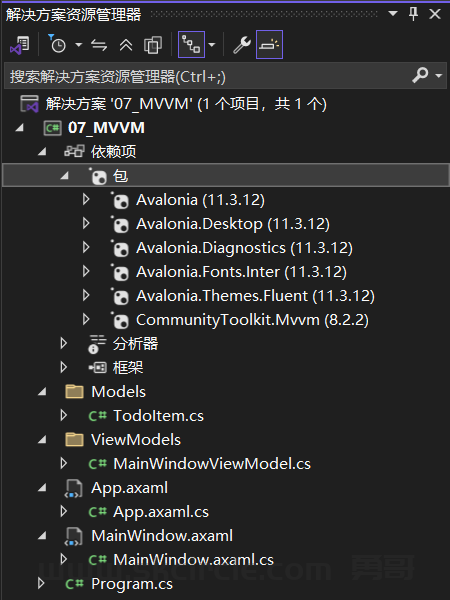
TodoItem.cs
namespace _07_MVVM.Models;

public class TodoItem
{
    public required string Title { get; set; }
    public bool IsCompleted { get; set; }
    public string Priority { get; set; } = "Normal";
}MVVM演示
TodoItem.cs
namespace _07_MVVM.Models;
public class TodoItem
{
public required string Title { get; set; }
public bool IsCompleted { get; set; }
public string Priority { get; set; } = "Normal";
}数据绑定
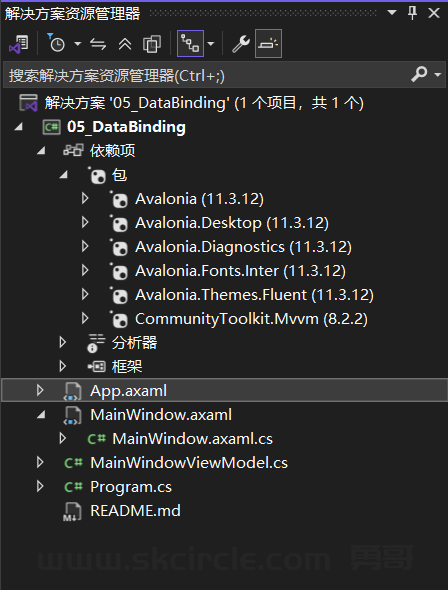
App.axaml
注意如果没有写<FluentTheme/>,则这些Fluent控件将没有效果,比如滑块控件成了一个Lable控件,只显示文字了。
ListBox演示
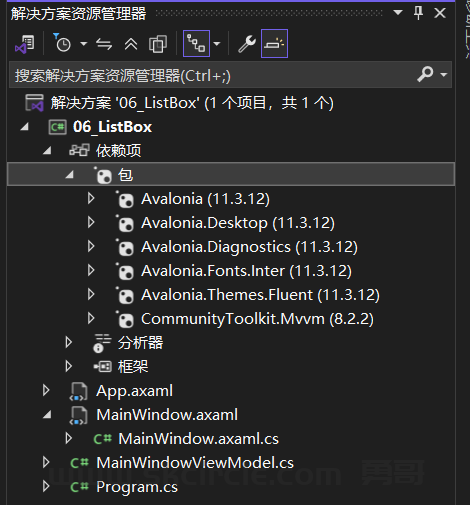
MainWindow.axaml
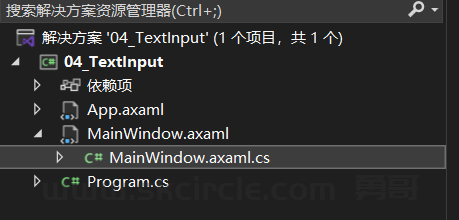
MainWindow.axaml
<Window xmlns="https://github.com/avaloniaui"
        xmlns:x="http://schemas.microsoft.com/winfx/2006/xaml"
        x:Class="_04_TextInput.MainWindow"
        Title="Text Input - 文本输入演示"
        Width="450"
        Height="400">
  <StackPanel Margin="30" Spacing="20">

    <TextBlock Text="TextBox(文本框)" FontSize="16" FontWeight="Bold"/>

    <StackPanel Spacing="5">
      <TextBlock Text="请输入您的名字:"/>
      <TextBox x:Name="NameTextBox"
               Watermark="在这里输入..."
               MaxLength="50"/>
    </StackPanel>

    <StackPanel Spacing="5">
      <TextBlock Text="多行文本框:"/>
      <TextBox x:Name="MultiLineTextBox"
               AcceptsReturn="True"
               AcceptsTab="True"
               TextWrapping="Wrap"
               Height="80"
               Watermark="支持多行输入..."/>
    </StackPanel>

    <Button x:Name="SubmitButton"
            Content="提交"
            HorizontalAlignment="Center"
            Padding="30,10"/>

    <TextBlock x:Name="ResultText"
               Text=""
               FontSize="14"
               Foreground="#2196F3"
               TextWrapping="Wrap"/>

  </StackPanel>
</Window>
常用布局面板演示
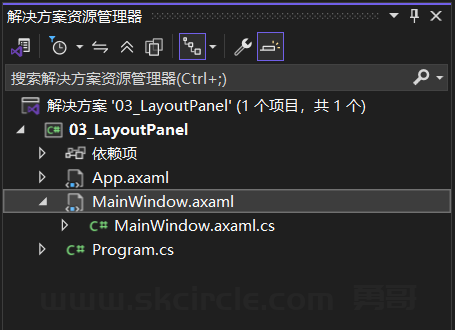
MainWindow.axaml
<Window xmlns="https://github.com/avaloniaui"
        xmlns:x="http://schemas.microsoft.com/winfx/2006/xaml"
        x:Class="_03_LayoutPanel.MainWindow"
        Title="Layout Panel - 布局面板演示"
        Width="600"
        Height="500">
  <ScrollViewer>
    <StackPanel Spacing="20" Margin="20">

      <TextBlock Text="StackPanel(栈面板)" FontSize="16" FontWeight="Bold"/>
      <Border Background="#E3F2FD" Padding="10" CornerRadius="5">
        <StackPanel Spacing="10">
          <Button Content="按钮 1"/>
          <Button Content="按钮 2"/>
          <Button Content="按钮 3"/>
        </StackPanel>
      </Border>

      <TextBlock Text="WrapPanel(环绕面板)" FontSize="16" FontWeight="Bold"/>
      <Border Background="#E8F5E9" Padding="10" CornerRadius="5">
        <WrapPanel>
          <Button Content="按钮 A" Margin="5"/>
          <Button Content="按钮 B" Margin="5"/>
          <Button Content="按钮 C" Margin="5"/>
          <Button Content="按钮 D" Margin="5"/>
          <Button Content="按钮 E" Margin="5"/>
          <Button Content="按钮 F" Margin="5"/>
        </WrapPanel>
      </Border>

      <TextBlock Text="StackPanel Horizontal(水平栈面板)" FontSize="16" FontWeight="Bold"/>
      <Border Background="#FFF3E0" Padding="10" CornerRadius="5">
        <StackPanel Orientation="Horizontal" Spacing="10">
          <Button Content="左"/>
          <Button Content="中"/>
          <Button Content="右"/>
        </StackPanel>
      </Border>

      <TextBlock Text="DockPanel(停靠面板)" FontSize="16" FontWeight="Bold"/>
      <Border Background="#F3E5F5" Padding="10" CornerRadius="5" Height="120">
        <DockPanel>
          <Border DockPanel.Dock="Top" Background="#9C27B0" Height="30" CornerRadius="3" Margin="0,0,0,5">
            <TextBlock Text="顶部区域" HorizontalAlignment="Center" VerticalAlignment="Center" Foreground="White"/>
          </Border>
          <Border DockPanel.Dock="Bottom" Background="#FF5722" Height="30" CornerRadius="3" Margin="0,5,0,0">
            <TextBlock Text="底部区域" HorizontalAlignment="Center" VerticalAlignment="Center" Foreground="White"/>
          </Border>
          <Border DockPanel.Dock="Left" Background="#2196F3" Width="80" CornerRadius="3" Margin="0,5,5,5">
            <TextBlock Text="左侧" HorizontalAlignment="Center" VerticalAlignment="Center" Foreground="White"/>
          </Border>
          <Border Background="#4CAF50" CornerRadius="3" Margin="0,5,0,5">
            <TextBlock Text="中间区域(自动填充)" HorizontalAlignment="Center" VerticalAlignment="Center" Foreground="White"/>
          </Border>
        </DockPanel>
      </Border>

      <TextBlock Text="Grid(网格布局)" FontSize="16" FontWeight="Bold"/>
      <Border Background="#ECEFF1" Padding="10" CornerRadius="5" Height="150">
        <Grid>
          <Grid.RowDefinitions>
            <RowDefinition Height="*"/>
            <RowDefinition Height="*"/>
          </Grid.RowDefinitions>
          <Grid.ColumnDefinitions>
            <ColumnDefinition Width="*"/>
            <ColumnDefinition Width="*"/>
          </Grid.ColumnDefinitions>
          <Border Grid.Row="0" Grid.Column="0" Background="#F44336" Margin="2" CornerRadius="3">
            <TextBlock Text="(0,0)" HorizontalAlignment="Center" VerticalAlignment="Center" Foreground="White"/>
          </Border>
          <Border Grid.Row="0" Grid.Column="1" Background="#4CAF50" Margin="2" CornerRadius="3">
            <TextBlock Text="(1,0)" HorizontalAlignment="Center" VerticalAlignment="Center" Foreground="White"/>
          </Border>
          <Border Grid.Row="1" Grid.Column="0" Background="#2196F3" Margin="2" CornerRadius="3">
            <TextBlock Text="(0,1)" HorizontalAlignment="Center" VerticalAlignment="Center" Foreground="White"/>
          </Border>
          <Border Grid.Row="1" Grid.Column="1" Background="#FF9800" Margin="2" CornerRadius="3">
            <TextBlock Text="(1,1)" HorizontalAlignment="Center" VerticalAlignment="Center" Foreground="White"/>
          </Border>
        </Grid>
      </Border>

    </StackPanel>
  </ScrollViewer>
</Window>
按钮与事件
解决方案:
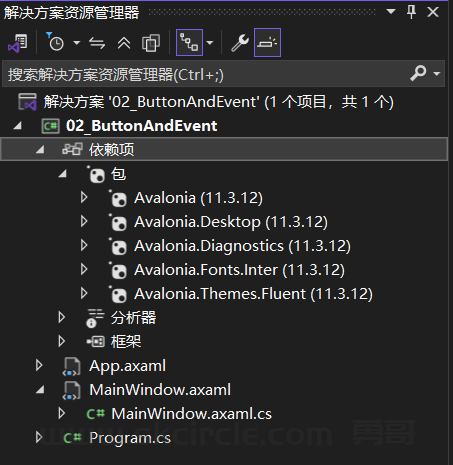
MainWindow.axaml
vs2022配置Avalonia环境
(1)安装vs2022
(2)安装插件
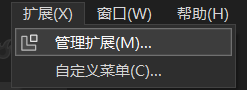
安装Avalonia for Visual Studio扩展
(3)项目模板
Autofac这样的依赖注入框架还可以继续在Avalonia中使用吗?
可以。 Autofac 完全可以在 Avalonia 中使用。
Avalonia 本身不内置依赖注入,但它基于 .NET,你完全可以像在普通 WPF 或控制台应用中一样使用
wpf的基础知识点演示:
知识点包括下面这些:
(1)常见的知识点
cs中的:
这一节演示一下wpf, CommunityToolkit.Mvvm, Autofac 技术栈下的多页面操作。
解决方案:
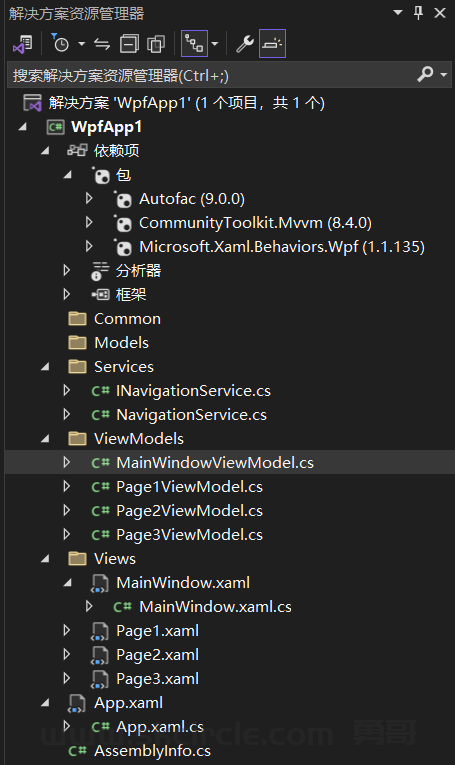
INavigationService.cs
Powered By Z-BlogPHP 1.7.3
Copyright www.skcircle.com Rights Reserved.